Docs
Getting started
Map controls and keyboard shortcuts
Zoom in for a closer look, or choose a place from the list. You can also move through the quiz with a keyboard instead of tapping small map shapes.
On this page
Choose the right answer format
Name the highlighted place asks you to identify a shape and choose its name from four text options. Find a named place gives you the name first, then asks you to select it on the map or from the list. Flag and capital quizzes ask their own questions; always follow the prompt.
Text choices submit the same answers as the map controls. They can be easier on a phone, for a small country or when you prefer a keyboard. Use the input that lets you concentrate on the question.
The place list has a separate action button. In Learn, choose a name and select Locate on map to inspect it. In Find a named place, choose a name and select Use selected place to submit your answer. Changing the list selection alone does not submit it.
Text choices make small targets easier to select, but identifying a highlighted shape or a flag still requires seeing the image. For map practice with named text alternatives, use Find a named place. It offers a different way to practice locations rather than describing an unlabeled shape for you.
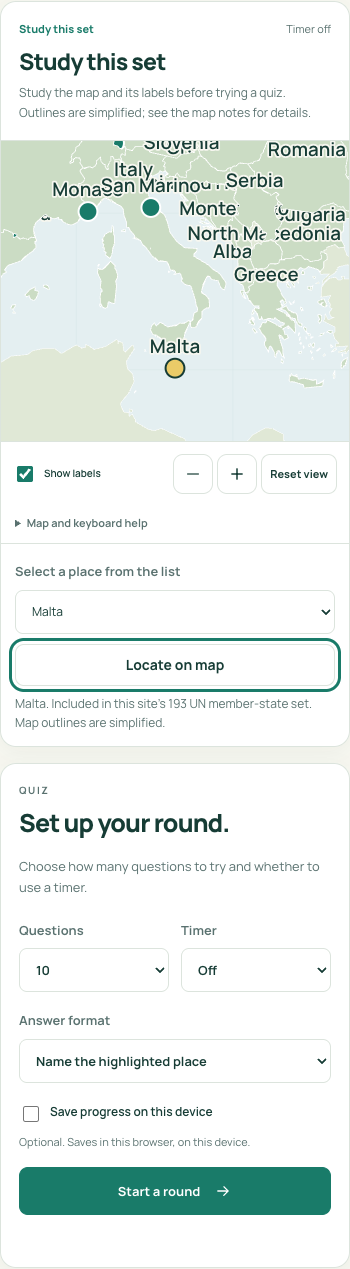
Enlarge an area and return to the overview
- Use Zoom in to make the current map larger. Zoom out reduces the scale again.
- Drag the enlarged map to pan, or use the arrow keys while a map feature has keyboard focus. The + and − keys zoom; 0 resets the view.
- Use Reset view to restore the original extent. Reset changes the view; it does not erase answers or begin a new round.
- If a place remains too small or crowded, use the text choices or learning list instead of repeatedly guessing at the map.
Complete a question with the keyboard
- Press Tab to move through the available controls. Shift+Tab moves back. Follow the visible focus outline.
- When a choice button has focus, read its label and press Enter or Space to submit it.
- Read the feedback after submission. Tab to Next question and activate it to advance.
- For keyboard map selection in location format, focus an available place and activate it with Enter or Space. Use the text alternatives if that path is more convenient.
| Action | Expected effect |
|---|---|
| Tab or Shift+Tab | Moves focus; moving focus alone does not submit an answer |
| Enter or Space on an answer | Submits the focused answer |
| Zoom in / Zoom out | Changes map scale |
| Reset view | Restores the initial map view |
| Next question after feedback | Advances the round |
Labels, focus and highlighting
Show labels displays place names in Learn. The focus outline shows which control will respond to your next key press. The question highlight shows the place you need to identify. Check which cue you are looking at before answering.
Quiz hides the study labels. You can return to Learn during a round, inspect the map and switch back without changing answers already submitted. The timer keeps running if it is on. After you answer, feedback shows the correct place or name so you can compare it with your choice.
Try answering with the keyboard
Open Countries of Europe with Timer off. Start a round, use Tab to reach an answer, and press Enter or Space. Read the feedback, then advance. In a new Find a named place round, try the text list instead of the map and submit the selected place.
For physical geography, check what the map highlights: an area, a river line or a representative point. A point marks a location without showing the full size of the feature. The map notes explain which approach is used.